Wednesday, 1 February 2017

Sara Process and Production Lesson 5

Within this process and production lesson with Sara we were told that we were going to be creating animated piece like an infographic. I found that this animation would be very creative but also very challenge, as I am still a beginner when it comes to after effects. For the first part of the lesson we had to create a map of our choice, to do this we had to quickly create this in the programme Adobe Illustrator. However we needed to make sure that the map had a reason like it was going to follow a journey. I decided to choose the journey that I take when I'm going home to work on the weekends.

The next part that I had to do was to import the map into After Effects using the process of production lesson I was then able to place this in the timeline so that I would be able to work with the Illustrated map that I had created. I then wanted to create a line that would trace over and follow the line that I had already drawn on the map whilst I was using the programme Adobe Illustrator. To do this I had to use the pen tool to create a line in After Effects that would trace over the existing line. Once I had done this I was then able to add a stroke effect so that the line that I had created in After Effects would light up and would stand out and highlight the path that I have to take when I go to work from home. I do feel that the map that I have created for this project and animation is slightly complex.

To create the stroke effect I had to follow the process of Effect > Generate > Stroke. This then brought up an option menu that I would be able to work with in on order for the design to work. I then needed to make sure that the path option had mask 1 selected, I was then able choose the colour that I wanted to use for the line. I decided to use the colour red, so that it would stand out on the purple line that I had already created. In order for the stroke effect to work I had to make sure that the timeline play header was at Zero, I then clicked on the stopwatch for the end option and changed the percentage from 100% to 0%. After I had done this I then moved the play header forward to about 2 seconds and again changed the percentage from 0% to 100% for the design and line to work, this then automatically added a key frame onto the timeline.

In addition to this we then looked at creating a tilt shift, to do this I had to create a new composition and change the name to tilt shift composition. We were told to create a tilt shift comp so that when the line was being drawn on to the map. The map would then zoom into the final destination that the line would following to, I felt that this process was one of the hardest parts of the lesson.

To create a tilt shift I had to use the position, scale tool and the three axises which were X, Y and Z. I firstly moved the playback header to the start of the timeline to expand open the options menu I had to make sure that I had selected the 3D layer tool which was a cube shape that was located to the left of the timeline. I firstly started by looking at the positioning by changing the values to 924.0, 532.0, 0.0, I then moved onto the scale and changed the values to 117.1, 119.5, 100.0. After this I looked at the axises and changed the Z axis to 0x+2.0.

Once I had done this I then moved the timeline header to around 2 seconds 16, where I then had to change the values of the positioning, scale and axises again in order for it work. I firstly started with the position where I changed the values from 924.0, 532.0, 0.0 to 1752.0, 1020.0, 0.0. I then looked at the scale and changed this from 117.1, 119.5, 100.0 to 223.1, 223.1, 100.0 The final part that I looked at for this part was the axises, I had to make sure that the Z axis was still 0x+2.0. I then checked to make sure that the design worked properly and looked correct.

After this I then moved onto the arrows that would appear across the screen after the map had zoomed in on the final destination. To create the arrows I had to use the programme Adobe Illustrator and the pen tool, once I had done this I was then able to import them into After Effects. Before placing them onto the timeline, I had to create a new composition so that I would be able to work with this rather than confusing myself with just one composition. To make the arrows appear across the screen I had to make sure that the timeline playback header was at the beginning of the timeline, so that I was then able to move the position of the arrows off the screen to the left hand side. I clicked the stop watch so that the positioning of the arrows was locked for that key frame. I then moved the timeline playback header to around 1 second 13 and made the arrows so that they were fully visible on the screen. I noticed that this had created a key frame automatically, I finally then moved the timeline playback header to 3 seconds and change the positioning of the arrows so that the were off the screen to the right hand side of the screen. I then played the timeline to make sure that the design worked and looked correct and professional.

The final part that we did in this process and production lesson was to create a graph that would represent something about you, so I chose to create a graph about the number of days that I work through 5 specific months. I wanted the graph to fit in with the theme of the map which was work. To start off with I had to make the graph using separate layers in the programme Adobe Illustrator, to do this I used the rectangle tool. I then imported these into the After Effects, for the graph to work and appear individually I had to work with the scale tool and the positioning option. Before doing this I again had to create a new composition, using the option composition > new composition. I then placed the graph into the timeline, and selected the scale option for each bar, I had to make sure that the link for the scale for unlink and the timeline playback header was at the beginning of the timeline and change the value from 100.0 to 0, I then moved the timeline playback header half a key frame forward and changed the value of the scale from 0 to 100 so that it would appear. However I noticed that it was appear from the middle so I need to change the positioning so that it would appear from the bottom. I continued to do this for every bar that I had, once I had done this I was then able to add text to the design. The final part that I did in this process and production lesson was to create a final composition to place in all my assets into, after I had done this i was then able to render out the final composition.


I was quite happy with how the design turned out in the end however I feel that I could improve on this, but to this I going to create a new one using the same tools that I learnt in this lesson to make a new animation that looks a lot better. Below is another animation that I created in my own time, I am quite happy with how this design turned out in the end because I think that this design looks a lot better than the previous one that I created in the lesson, I feel that it looks more professional.

Process and Production Nick - Lesson 4 Stencils

Within this fourth process and production lesson with Nick, we were given the task of creating a stencil of the topic that we chose at random. I found that this lesson was one of my favourite process and production lessons that I have had with Nick because it was very interesting, fun and very productive. Before starting the project we had to choose a topic at random out of a box the topic and subject that I chose at random was a Policeman I thought that this topic was very interesting as I had lots of idea that I could do with this. The first was to create a policeman's hat, however I then thought about how I wanted the design to be quite personal to me and connect so I thought about creating the South Yorkshire Police Badge with out the text, but just the outline of the badge. However before drawing the design onto the main piece of paper that I was going to use I decided to draw the badge out on a smaller piece of paper so that I knew it would work at a larger scale.

Once I was happy with how the design looked at a smaller scale, I then moved to create the design at a larger scale, to do this I used a pencil and a ruler to make sure that the design was equal and didn't look off. Once I had drawn the design out with the pencil and ruler, I was then able to cut out the stencil to create a finalised piece, so that I would be able to paint over the stencil in order to create a design. To cut out the stencil design I used a craft knife which I found was quite difficult at first because its been a while since I have used a craft knife, however once I had started I eventually got the hang of it. i was quite pleased with how the design looked once I had started to cut out the segments in the stencil, I chose the South Yorkshire Police Badge because its from my hometown, and where I live when not at University. To make sure that I cut out the right segments on the stencil, I drew a squiggle so that this wouldn't become confusing about which parts needed to be cut out and which didn't. After I had cut out all the segments I was quite happy and very pleased of how the stencil turned out because it took me a bit longer than everyone else to cut out the design, however I wanted to make sure that it was perfect and looked right.


Once the stencil had been cut out it was then ready to be used for my design, we were given the choice of three colours of paint that we could use to create a final design piece. These were blue, Red and Yellow. I decided to go with the blue paint because I felt that this would connect well with the subject and theme of a Policeman as the sirens on a car are blue. I also chose the colour blue for the badge design because it would be bold and stand out very well. To create the final design piece I had to go to the painting station where I found another sheet of plain A3 paper to print my stencil design on to. Before printing onto the blank A3 paper I had to make sure that the alignment of the design was correct and perfect and how I wanted it. I found this part of the lesson quite interesting and fun because I was very interested to see how the design looked once I had used the stencil to create the design piece. Below are two photographs that I took to show how my design looked after I had painted onto the stencil, to create the final piece on the piece of A3 plain paper. Overall I was quite happy with how it looked, although I do feel that one of the segments at the bottom of the badge could have slightly cut better because it doesn't really match up properly, however this could be something that I could work on if I wanted to. 


After I had created the design I then had to choose a piece of text at random to showcase on the design piece that I had created. The piece of text that I chose at random was "Drown me in you sweet submission", I felt that this piece of text worked very well with my design that I had created. However I now had to think about were to write the text and present this on the design so that it looked nice and professional. I had to also think about which typographic font style I wanted to use for the design, as I wanted it to match the text and the fit within the style that I was going for. I have to admit that I am not the best at typography so I had to try and work with the font styles that I am most comfortable with, but the font styles that work. To add text to my drawing I had to use a piece of paper, pencil and a ruler for it to work, however before I started to draw out the design at a larger scale I decided to draw it small so that I was happy with it. Once I had done this I was then able to draw it out larger, I had to make sure that the type was perfect and fit the page that I was working with. I was then able to cut out the type to create the stencil that I needed to work with for the design. 


After I had finish cutting out the text stencil with a craft knife I was then able to place the text over the previous design that I had created which was the South Yorkshire Police Badge. Again I had to choose between the three paint colours to use, as I had already used Blue it was between Yellow and Red. I felt that the colour red would work the best for this design, as I wanted the text to stand out and be bold and seen easily, also cause no problems when reading the design. I then had to line up the text on the badge for it to look right, I decided to place the text straight over the top of the police badge. However once the text had been printed I felt that it could have been put in a different place that would be easier to see and read. However overall I was pleased with how the design turned out in the end. 


To improve on this design further I decided to experiment with the colours of the police badge and the text, so see how the design would look. The first thing I did was to reprint the badge by using the paint colour Yellow, so that it was very different to the last design. Once this and the stencil for the text had dried I then had to choose a colour to use for the text, as I had used the red colour before I then decided to use the blue colour because I felt that this colour would work on the design and would be bold and stand out well. After this had been printed I was very happy with how they both looked, however on the last design I decided to change the angle of the text slightly so the design ended with a stripe up the side which didn't need to be there. If I was to improve on this I would take a little more care with the design so that it would be more perfect.


Overall I found that this process and production lessons was one of my favourites, as I am looking forward to the next lesson with Nick. I think that to improve on this lesson I might create some of my own stencil designs using patterns or lyrics and objects from my favourite songs.  

Wednesday, 25 January 2017

Process and Production Jay - Lesson 1 Cinema 4D

Within this process and production lesson we looked at Cinema 4D as a design tool and how to transfer our software skills throughout the lesson. Cinema 4D is very easy to pick up, it is used for 3D modelling and games development. Within the first lesson of Jay's lesson within Cinema 4D, this session introduced you to the idea of utilising contemporary 3D software for design purposes. the outcome from these workshops will be a series of design experiments using Cinema 4D. Within this lesson we looked at:

1. The set up of the work / folders / set up Illustrator. 
2. Create the artwork in Illustrator to use in Cinema 4D. 
3. Bringing the artwork into the Cinema 4D programme.
4. Add text, Materials and light.
5. Rendering the Artwork.

The workshop then eventually included:

1. Rendering a sample of the artwork from cinema 4D.
2. Experimenting in exploring dynamics in Cinema 4D. 
3. Prototyping in Cinema 4D.

We firstly started off by creating new folders to place our artwork created in the process and production lesson. We then opened up Illustrator to create our piece of artwork, where we used standard document settings to create a document, where we then changed the orientation of the page from portrait to landscape to suit the design that I was going to create. I then need to find the rulers option to find the centre of the page, to do this I went to the setting view > rulers > show rulers. From the top left hand of the page of the rulers I had drag the point and drop the cross into the centre of the page where the pink dot was located. For the design I used my Initials of my first and middle name which were the letters R and J. Once I had done this I then needed to make sure that I saved the document as an Illustrator file known as Version Illustrator 8. 

After we had done this we then moved onto the programme Cinema 4D, a 3D software that I thought was very familiar as I had used it in college to create a 3D model of my Marc Jacobs Perfume Bottle, Jay then quickly talked through each tool and explained what it function was and what it was called. We were then ready to set up a template in Cinema 4D so that it saved every time I wanted to go and render something out on the programme, to do this I had to go to the render settings and edit render settings selection button, where I then selected an arrow button > under the output  > print (portrait) > A4 > this then changed the render settings to an A4 page. I needed to make sure that the frame range was to the current frame and I was then ready to save the selection, but before saving the selection i needed to also make sure that I changed the format from tiff to a jpeg with a quality of 75%. I was then ready to save the template and called it Logo 1. 

We then moved onto the mode > view settings to enhance open GL, I had to make sure that I ticked the shadows then selected the view to change the tinted border. Another point that I had to make was the opacity from 10% to 50% and to make sure the action safety selection was ticked and turned on. I had to also change the size from 90% to 95%, I then went back to the edit render settings and selected the anti - atlasing to change the geometry to the best. 

To import my artwork into the programme I had to follow the process of file > merge > artwork  > logo document > this then imports the Illustrator file into the Cinema 4D programme. Once the file had imported I then renamed the layers so that they would be easy to see, after I had done this I then had to select the extrude tool and drag the logo to put the logo into the extrude option. Using the extrude tool I had to select the Hierarchical tool and tick the box to make the logo a 3D object. I had to change the Z axis from 20 to 55. I also had to select the caps option and change both the start and the end from caps to fillet cap and the measurements of the steps to 3 and the radius to 0.3. I then copied and pasted the extrude option and moved it over the layer with the letter and under the design i then selected all the layers and group them all together.


We then moved onto look at the floor object by doing this I followed the process of the floor object > select > background object and floor object. We then needed to make sure that some of the materials that were located and found in the bottom of the menu, I then double click the materials which then allowed me to create a new material so that we would be able to apply this material to the floor and background window.


In the list window I then had to select the floor option and following the process of tags > Cinema 4D tags and compositing used to layer things, I had to make sure that the box was ticked so that it would allow me to select the box for compositing background and compositing background for HDR maps. I then had to reselect the material so that I was able to rename the material to the background which is located on the right hand side of the screen known as the attributes menu. I was then able to change the colour of the material to any colour that you would like, but then we were told to change it back to it original colour so that we could start the colouring of the material again. Furthermore into this I then went to the basic tab to look into the reflectance tool which we will look into further in the next lesson.


Our next task was to create several different colours that I would like to use within the programme for the letters that I have created in Adobe Illustrator. The colours that I chose to create were Purple, Blue, Green and Yellow. To allow the text to look better and more attractive by standing out, I used the Mo graph tool by doing this I used the Mo Graph option > Mo Text > Mo Text List Window > Attributes and select the object option. When I found this option I then had to change some of the measurement to allow the design to change, which were the depth from 20cm to 50cm.


I then had to use the text tool to create another word or phrase which was DesignStudio, I wanted this to match the branding that I had created for my own portfolio. (RJDesignStudio). I had to make sure that the text was aligned in the middle and a font style and size that would work well with the letters R and J that I had already created which was Avenir Next Bold. After this I then had to create a Null object to move null layer to just underneath below the text layer, so that I can select them both at once and together. Again I then changed the Caps to fillet caps like the letters that I had created before which were three options:
the steps to 3
the radius to 0.3
and both of the options from start to the end.


We then moved on to looking at the camera within the programme Cinema 4D by doing this I had to select the camera symbol which created a camera in the programme straightaway. I was then able to select the light option which changes the background of the programme to dark, after I had selected the light option I then need to look at the coordinates tab and change some of the measurements which were the X axis from 500cm to -250cm, I then kept the other axises the same from Y = 500cm and Z = -500cm. To make sure that the final design looked alright I then rendered out the design which would allow me to check out the lighting. We were told that when taking a photograph we need to make sure that the light is over your left hand shoulder so that it would allow the photograph to look professional.


The next step that we had to take and learn about shadows, to do this I had to follow the process of General > Shadow > Shadow Maps (Soft). After I had done this I then went back to the coordinates tab, but once we had to do this I had to go to the general tab to change the Hue and Saturation levels of both the key and fill. The key being 200 and 45, also the fill to 5% and 5%. To select all the colours and make them all luminance I had to follow the process basic > luminance and drag each colour from the colour option to the luminance option colour.

The next part that we did in this lesson I wanted to create a bend option to drop over the MoText, after I had selected the bend tool I then selected the bend modifier to make sure that the measurements of the object strength was 40% and the coordinates of P to 90 degrees and B to 90 degrees. I then had to make sure that the mode that I had selected within the object > change mode was changed from limited to unlimited, this could then change the strength of the design and text to see how it looks. We then went onto the animation the logo design but first I needed to group the null object and the MoText together so that I would be able to edit the two layers together.


Furthermore into this I then selected the enable axis to drag the axis into the centre of the programme, but I had done this I was then able to select the null object and the coordinates option with the R/H on the timeline to select the dot at 0 degrees and at 90F and the clicked the same dot and change the degrees from 0 to 360. To allow the design to work and animate I had to select the Timeline Dope sheet that could be located in the window option to select the null and then the linear option.


The final part that we did in this lesson was to render out the design and animation by rendering it out to 72 dpi and saving the animation out as a Quicktime movie format and untick the keyframe rate and select ok, this then rendered out the animation and design.


Monday, 23 January 2017

Business Lecture - China + India = Population Issues

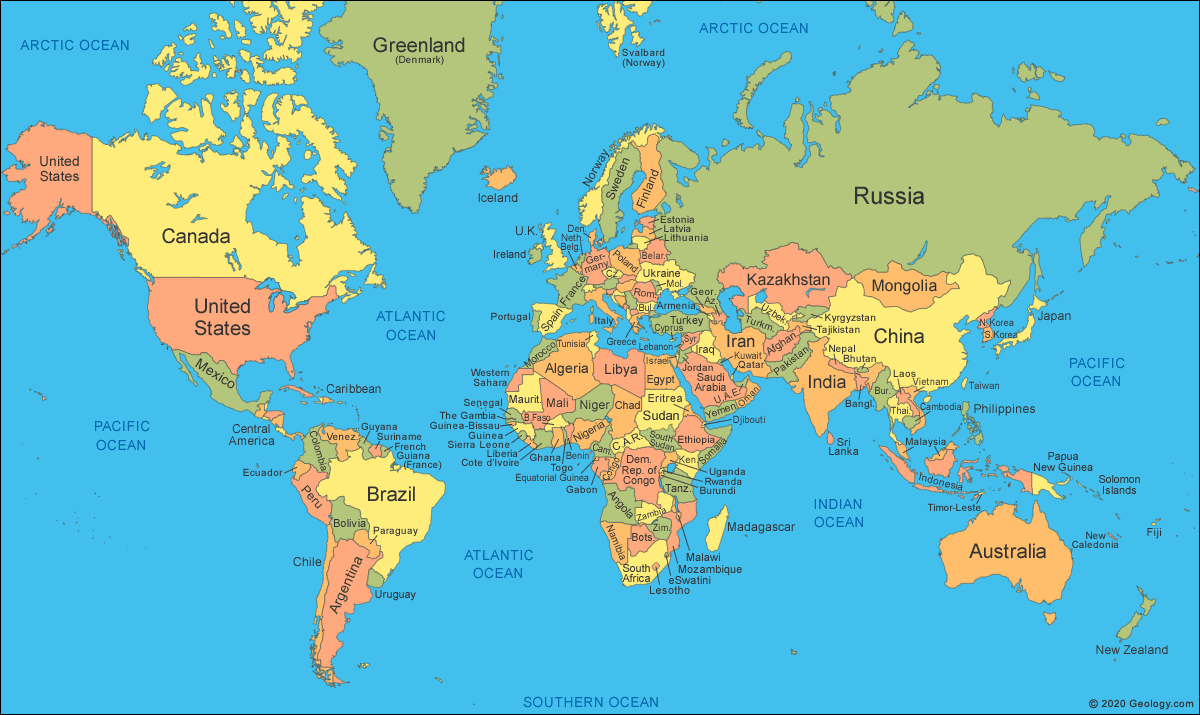
The first thing that we were told in this lecture was that more Internships and Placement will start to come onto the internet soon, I was happy to here this because I have recently been struggling to find a placement or internship that I want to apply for. Within this lecture we will be looking at Our World and the border issues, we firstly looked at the world map.


Once we had done this we were then shown a map that presented and displayed the GDP per countries on the world map in land mass proportion and the GDP per capita. I found that this was very fascinating to look at because I was quite interested to see how the GDP looked per each country. However there are emerging markets and problems areas that could be seen as we are the ones that will be dealing with all of these problems and we need to know what the problems are and how they will effect me as a designer and how they will effect me as a whole.


What/Who are these?

Countries and markets that are now developing and have a chance to come to famous. The markets which are growing are becoming the key developer and the potential markets for new businesses. These areas are becoming politically unstable and volatile.

To be more precise

China
India
Russia
Brazil
= Growth/Development Potential.

Middle East
China/Taiwan
Russia
= Problem Regions.

Interconnectivity of Technology

Why is this important?
This is important because they invest in the United Kingdom and some of the clients may well be from these investors and become new economic powerhouses which don't do what you do! There are also many problem areas that are world affecting and the technology will impact on you.

So, we have to appreciate what has happened already in the middle east.

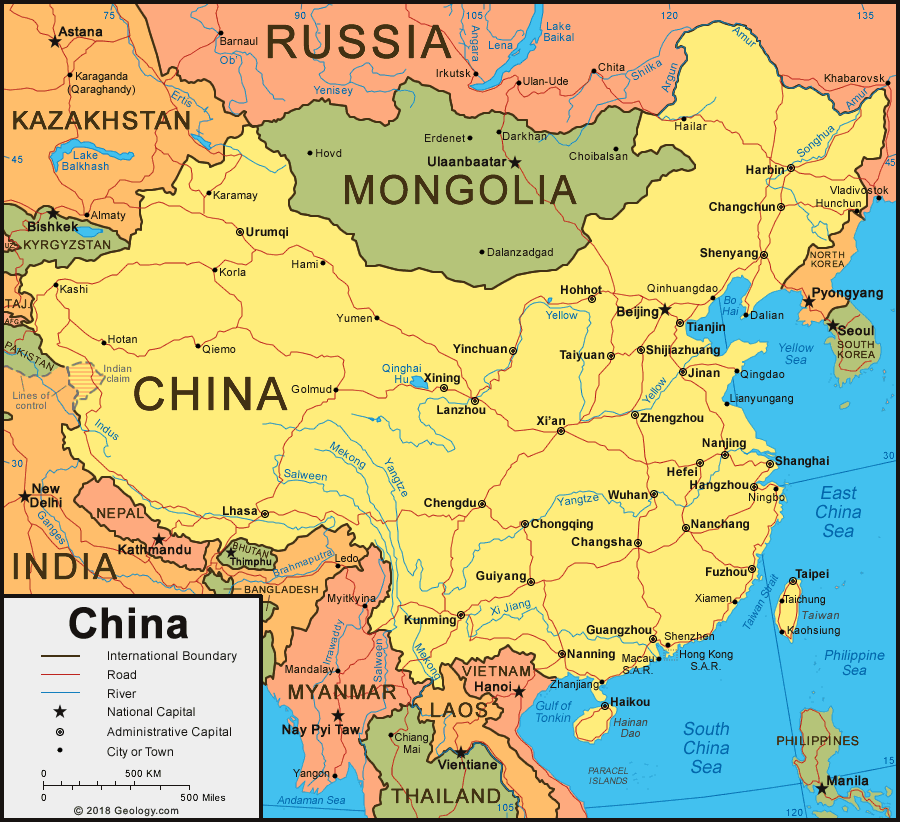
We firstly started to look at China.
Population - 1.4 Billion.
GDP - $9.28 Trillion


We found that communication and travel have more problems to overcome. We then looked at the regions of china and we need to appreciate that how china is unified countries, it isn’t as unified as we thought with the problems that they are facing as a country in relation to Russia.

We then were shown a graph showing Countries GDP levels (World Bank), China is becoming a major competitor. We looked at the graph that features the GDP per capita (USD) the United Kingdom is doing better than China. Provisional Share of GDP Growth in 2014, shows us which of the regions are struggling and that aren’t struggling. We were then show the Energy-Related CO2 emissions. China are increasing and the US are decreasing, which is why Beijing are famous for the smog. We were then told about about how Donald Trump disagrees with some of the methods that China uses.


Key Issues - 

Taiwan:
China regards Taiwan as of China (as it once was)..
Taiwan has a different view. Wants independence after 68 yrs of self rule.
China adamant this will not happen.

South China Sea: 
Chinese navy ( a new phenomenon for China and the world), was been becoming expansionist in the South China Sea, taking over land and islands, buy force if necessary.

Trump (Donald):
Not exactly respecting of China, but with some reason.
China needs to adhere to world business methods.

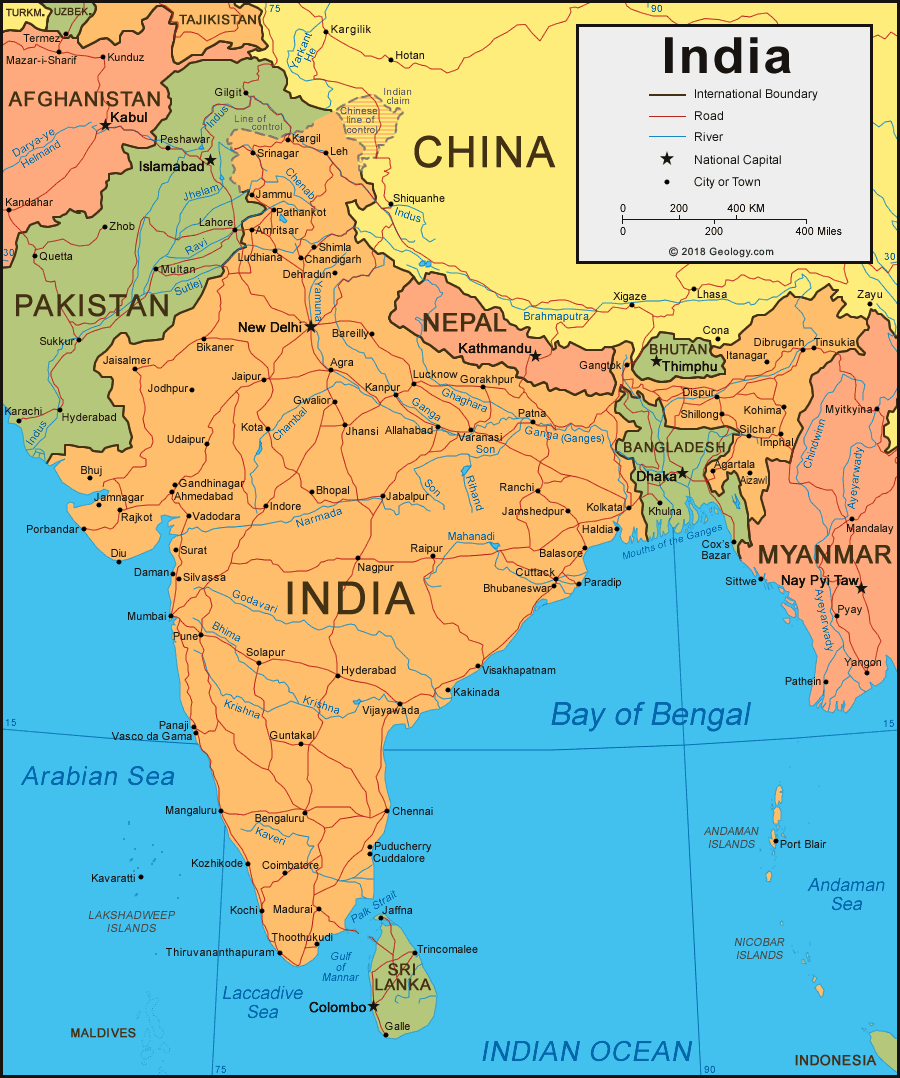
We then moved onto talk about India:
Population - 1.2 Billion
GDP - $5.1 Trillion


It is similar to China but isn’t as bad. There are big cost of shipping between the United kingdom and China, but less between China and India. We were then shown a graph of the GDP in India between the 1950's to 2014.

It has really increased over the years and will keep increasing but will depend on China and there problems, this is whether or not china will close there doors to India and the rest of the world. This means that they could stop trading. We then looked at the GDP Per Capita within India and the CO2 emissions from various countries from the 1990's to 2010.


I found that the country India doesn't have the control like the other countries.
For both countries:

China and India: Have strong development - economically and are doing well, but

Victorian type imbalance of Wealth
Poverty not uncommon, variable across the country
Living standards weak and variable
= Leads to social stress. Problematic for heavily centralised or democratic governments. 
However these difficulties led to serious political disruption in Europe.

There are serious issues of copyright breach.
Needs regulation, which is not forthcoming
…..

There are big cultural differences. The understanding between China and the West is not good as it should be. India are much better with the west and respect each other. So the economic development will be faster, then slow down but they will again get quick but then will slow and will continue to do this.

Many people in the west have what they need which results in high competition and differentiation need is important. Many people in the east don't because they is potential for very high demand.

Population Issues

For the next part of the lecture we then moved onto talk about the Population Issues. Population growth has been very dramatic as there were 7 Billion people world wide in 2015, but only 1.5 Billion worldwide in the year 1880, this shows us the rapid difference. We were then shown the projected world population and the world population forecast an breakdown. I found that this was very interesting to look at because there this could change even more in the up coming years and how this is shown to us differently in each continent.


After this we were then shown the population density, this tend to cause population problems. This creates localised issues. The European Population Density graph is used partly to show why immigration is more within these countries. I thought that this was very detailed and interesting to look at the facts and figures.

We also looked at the graph with the World Demographics which feature age group with both genders female and male in the world in 2014. We then compared this to the graph of demographics in the United Kingdom in 2014, where we found that it was very different. We then were told that this is how we know that the United Kingdom is changing shape.


The final part that we looked at within this lecture was the Thomas Malthus graph and the basic theory. I found that this was also very interesting.

Go past this “Crisis Point” and serious issues occur
War - think food, lifestyle, etc.


On the plus side…
You can see the changing dynamics of the population.
This implies the issues a market may face.

I found that this lecture was very interesting and quite factual which I really enjoyed learning about. 

Wednesday, 18 January 2017

Process and Production Sara - Lesson 4 3D Space

Within this process and production lesson with Sara, we were told that we would be looking at 3D Space. I was very intrigued and interested to find out what this meant and look at something new which I could expand my skills on in the future. The first thing that I did in this process and production lesson was to create an Illustration of a part of Huddersfield town of our choice. The part of Huddersfield that I chose to Illustrate was the Lawerence Batley Theatre, I decided to choose this building because it was very detailed and had a vintage look. I also felt that I wanted to choose a piece of the town that wouldn't be as popular and other people were creating, I also thought that the theatre would connect with me personally too, as going to theatre to watch shows is one of my favourite things to do in my spare time. I wanted to create my Illustration with lots of detail because I wanted the building to look right and similar to the real life building, however I felt after I had created the design that there may have been a bit too much detail to work with. When creating the design in Illustrator I needed to make sure that all the items were on separate layers for example the doors on one, windows on another and the building on another.


I am quite proud of how the building turned out once I had created it in Illustrator. I felt that the design looked very professional and I have definitely improved on my Illustrator skills since my first year at University. We then had to save the illustrator file in a specific way by expanding the Illustrator art board so that the edges would keep in the design that your working with within the art board area. If the edges or images are off the art board you  would have to make sure that the design fits within the page, by modifying this so that it is bigger than the HD. We had to then go to document setup > edit art board > and drag out the corners, so that it would cover the images outside of the art board. To save the design, I had to follow the process of save as > new name which was Enlarged extended version, after I had done this the Illustration was then ready to be imported into after effects. 

I then opened the programme After Effects, where I was then able to import my Illustrator file, by using file > import > single file. Before importing the design into After Effects, I need ed to make sure that the format kind was selected as Composition and this was at layer size. To add the layers of the Illustrator file into the timeline I had to double click on the composition, so that this would transport into the bottom menu which was the timeline. 

After we had done this I then had to create a new composition, by following the process composition > new composition. Before pressing ok, I needed to make sure that the settings for the new composition were correct by naming the comp, as Main composition, the width and height needed to be 1920px by 1080px, the preset had to be HDTV 1080 25, the frame rate per second at 25 and finally the duration to 10 seconds long. We were then ready to select ok.

We then had to drop the visible layers onto the main comp, however to do this we had to do this in a certain way by selecting all of the layers in the Illustrator comp and copying and pasting them into the main comp by using two keyboard shortcuts cmd + c and cmd + v. After we had done this we then had to look at the switched by doing this I had to select the "toggle switches/modes" option in the timeline and select the cube option which activated the 3D option after this we had to make sure that this option had been selected for every layer. 

Furthermore into this we then looked at the position where I had to make sure that the value for Z was changed to 0 for every layer. I learnt that if you use a minus value it moves the design closer, but if you use a plus value it moves the design further away. We then selected the 2 Views horizontal that allowed me to work with the camera and Z space a lot better. To work with the Z space, we had to stagger the objects, so that they were selected and offset slightly in the Z space on the left hand side of the screen. However I had to make sure that there was enough space between the objects so that the camera pan through the design easier. To move the lines we had to use the blue arrows. 

In addition to this we had to create a new camera by following the process of Layer > New > Camera. I had to make sure that the camera that I selected was a 50mm camera which was a 2 node camera, before selecting ok, I had to enable the depth of field at the end. To use the camera in the composition, I had to select the position and the point of interest and change the position to more where the camera was already positioned on the screen. The point of interest was to change the angle of where the points were. I then had to create 2 key frames at the beginning of the timeline where the the camera was on the top of top view and the other one at the bottom, which was at the end. 

We were then able to use the camera tool to do this I had to select the layer and use the keyboard letter U, to show all of the keyframes that I was going to be working with. We were then introduced to motion path, where I had to select the keyframe which you could only see some of the motion path. We then had to go to preferences > display > all keyframes > ok. the keyframes for both position and the point of interest would then show, I was then able to use one of the tools to move the position of the point in the top of the camera section. I had to make sure that the speed and the motion of the animation looked and worked correctly. I found that adding more keyframes meant that the camera did more work, to change the direction or the path of the camera, I had to use the bezier tool. However I felt that this didn't work with my design so I decided to keep the design the same.

We then moved on to look at importing some textures into the after effects programmes, the textures that I decided to use for my design were a Ice Texture for the sky and a brick texture for part of the building. For the texture to work I had to make sure that this was applied to the correct layer and the overlay mode was changed to multiply. I also decided to add a page turn to some of the layers that I had created, to do this I used the cc page turn tool option and changed the positioning of some of the layers so that the layer would fold upwards. I was very happy with this process and production lesson after I finally got the hang of it. 


Monday, 16 January 2017

Business Lecture Budgeting and Business Planning

Budgeting

As we have already accounted, budgets are a corner stone that is made up of good accounts.

What is a budget?

An allocation of money (or resource) to undertake a particular task. It may be over a specific task (such as a project) or a time period, or both. Furthermore into this topic budget is meant to be the rea use of resources that supply us with information. Over time, this information is then used to improve companies and future budgets. Budgets also help us to understand HOW and WHERE your costs go and how the money is spent.

Budget
Proposal
Resource
Allocation

Actual
Actual
Resource
Used

Variance
Difference between the Two.
(May be positive, neutral, or negative).

We where then shown an example of the budget actual variance and cumulative variance.

The example shows that the maths and sums to this has already been done so that the answers have already been worked out and easier to see, but it shows that you have overly spent by £12. This is why budgeting is so important so that you can see and work out the problems that feed into one budget. Within the second part of the lecture we then talked about Business and Planning and Media types which I thought would become very useful within the future, when I am a designer working for a company or a company that I have set up and managing yourself. 

We firstly started off by talking about the basics of business planning and what it is meant by this and why it is so important to companies. We were firstly told about the purpose which is the Income, Profit, Charity and Kudos? So what do you want out of this? and why? The next thing we were told was Tye is it Freelance, Ltd, Semi-Partnership and or Partnership. What is the nature of this, what are you actually doing? This MUST be legal and you have to think what you can do, and just something that you want to do. The final basics we looked at was where, where do you want to geographically do business and where would you want this business to be, not New York think smaller such as where would like this company to be located in the United Kingdom. 

This is very important as you need to think these points all through very carefully which will allow these aspects to be successful. If you have no direction, you will slowly drift and will become unsuccessful. The knowledge of where you are will help you out and help you to understand where you would like to go and where you want to be in the future. However try not to start a business until you have thought and mastered these points, so that you will be likely to be unsuccessful. 

After you have done this you can then start to develop several plans so that you can succeed at the task that you have and are trying to do. Plans can go three different way these are: Good, Bad and Ugly, however you do need to address the situation what you have to do. You need to consider the basics which are the cost of living, the facilities that you have and also need to require that includes food and drink the equipment and materials that you need, but also where you are going to live and the cost of travel too and from places. To do this you need to split these two situations into two different groups one being your personal life and the other your business. 

To be certain you need to the financial and resources for both groups in order for you to keep track of your spending and income in an easier and understandable way. For example you need to consider the amount that you earn in order for you have an easy way of living and this will also indicate that when you need to set up your business. However for your Business Life you need look into the cost of running the firm and company, but you also need to consider the way in which is going to run and its from here where you consider the business plan. I found that this lecture was very interesting and was factual and will defiantly help within the future. 


Friday, 9 December 2016

Seminar #9: the Abstract Polina Zioga

This was our final seminar session with Polina, I found this seminar very interesting and useful because I was able to grab some key points from this lecture for when I am writing my own essay abstract. For this seminar we looked at an example abstract that we could highlight and make notes about to answer four questions that I was given to analyse. These were:

What are the main terms and concepts?
The main terms and concepts of the abstract were the keywords that were displayed just below the abstract.

What background information is provided?
The background information that was provided within the abstract to give a brief summary to start off the essay on Visual Hierarchy was "Visual Hierarchy is a significant concept in the field of advertising, a field that is dominated by effective communication, visual recognition and motion".

What do you think is the research question?
The research question is also the title of the abstract and the essay which is "Visual Hierarchy and Mind Motion in Advertising Design".

How do you think the author attempts to answer the question?
The author attempts to answer the question by giving reasons and examples to back up the evidence that they're providing for the question.

For the next lecture I need to find Illustrated text images of stills from movie opening sequences that can be any type of 2D image. When writing our essay we need to make sure that we add images to your essay. We then talked through a structure of an essay and looked at some examples. A question that we were told was what can we write together with a conclusion? What you would further investigate and what you would look into further. This is a good point and what can we gain from this so that we can carry on evolving and developing, we should also consider using sub headings. I thought that this seminar session with Polina was interesting and I am going to keep things into consideration when writing my own essay and abstract.